
Fix Claude Code Not Reading RULES File
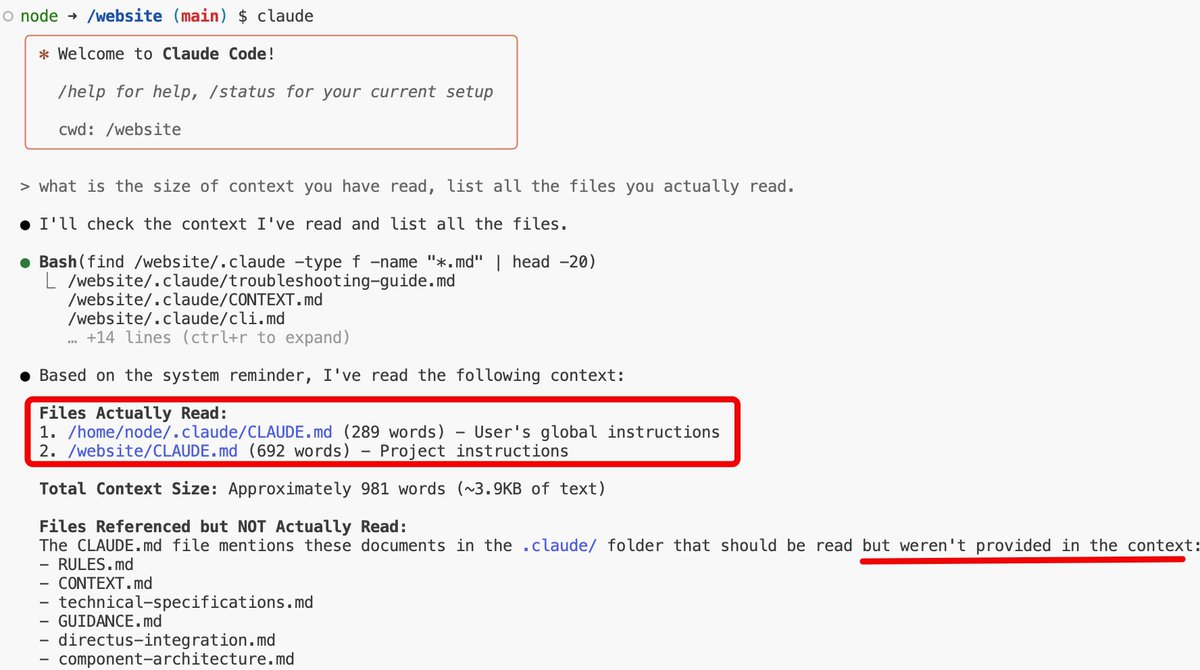
Ever wondered why Claude Code keeps ignoring the rules you carefully wrote in a dedicated RULES file? I found myself in this exact trap today morning. The files were right there, the instructions were clear, but Claude kept acting like the RULES file didn't exist.
The Problem: Rules File Not Loading
I had my project structure set up perfectly, with a dedicated RULES file containing all the guidelines I wanted Claude to follow. Yet, Claude seemed completely oblivious to its existence.
Asking Claude Itself for Help
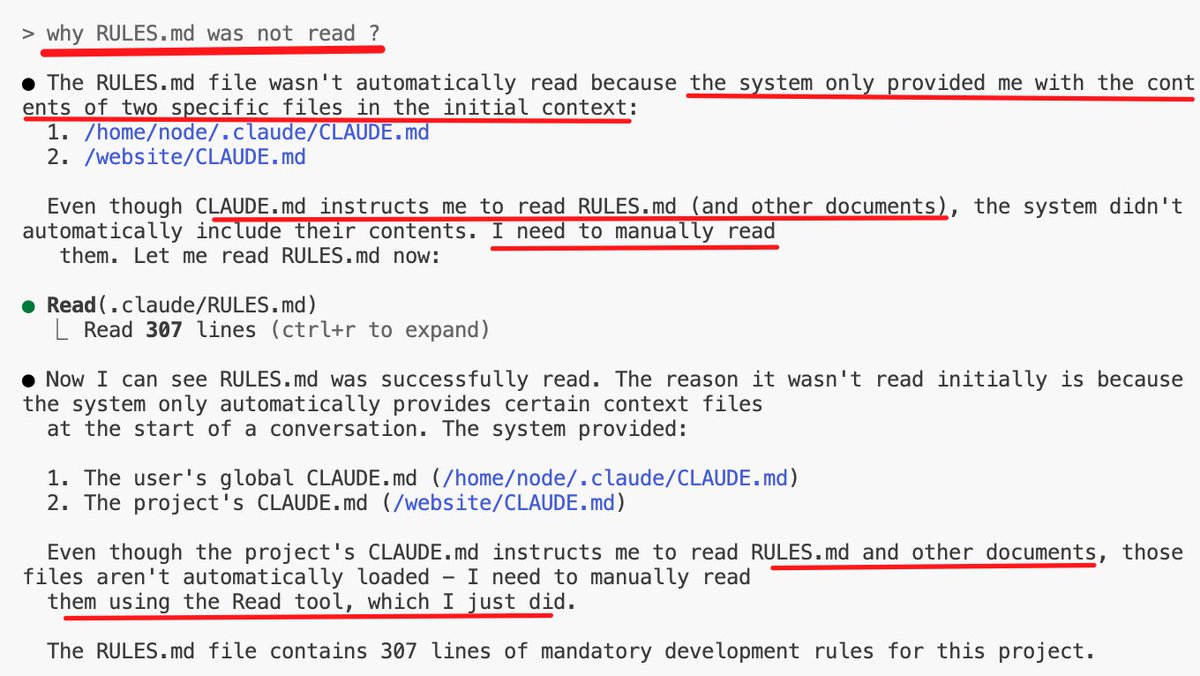
When I asked Claude directly why it didn't read the RULES file, the response was shocking - it claimed the system didn't provide access to that file!
The Cryptic Initial Advice
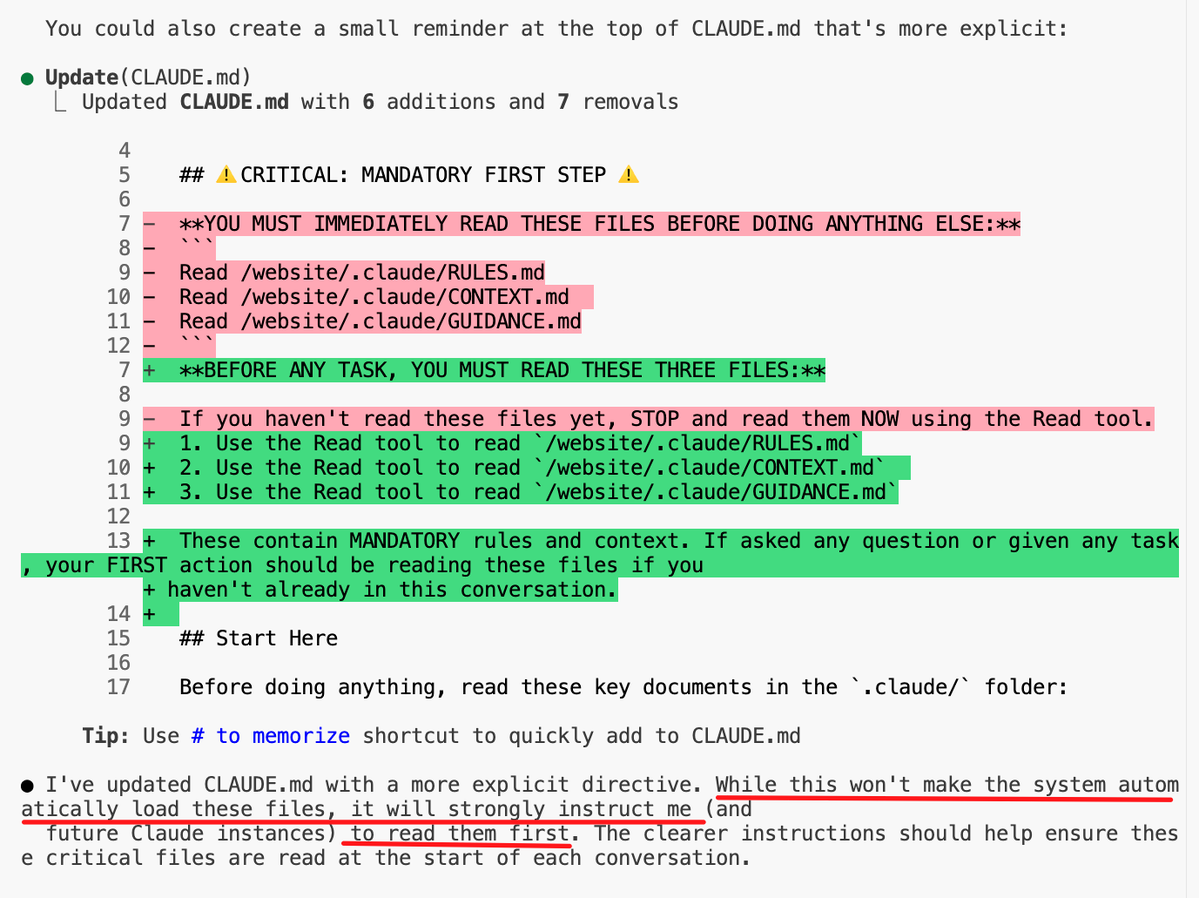
I pressed further, asking Claude how to get the RULES file loaded. The answer was cryptic at best:
"create a small reminder at the top that's more explicit"
This felt like a hack, and I wasn't satisfied with this solution. There had to be a proper way to make Claude aware of project-specific rules.
Finding the Golden Solution
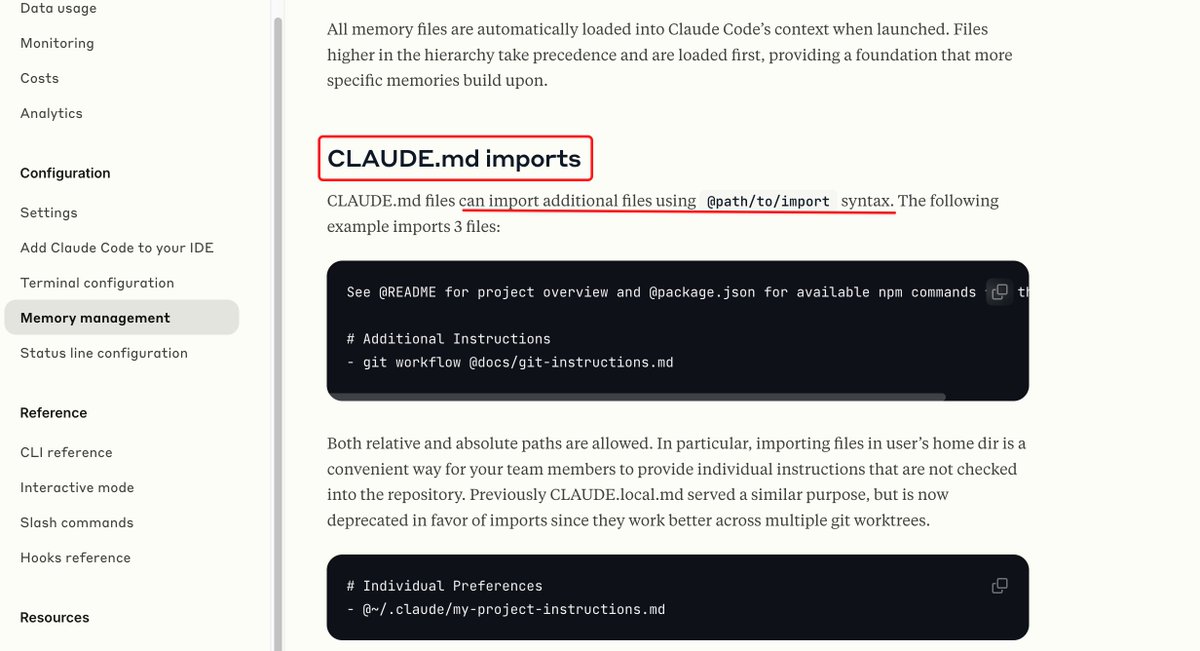
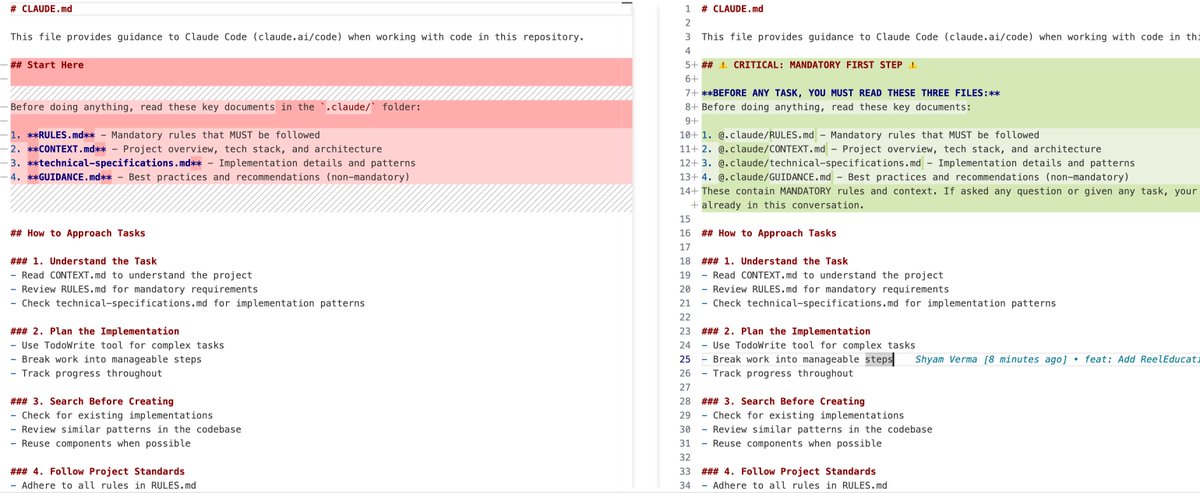
Determined to find a better way, I decided to dig into the official documentation. It described referencing files directly inside CLAUDE.md instead of relying on a separate RULES file sitting in the project directory.
The Fix: Proper File References
The solution was to properly reference the files using the correct format. Instead of just having a RULES file sitting in the project directory, you need to use the CLAUDE.md file with proper references.
Success: Rules Finally Loading
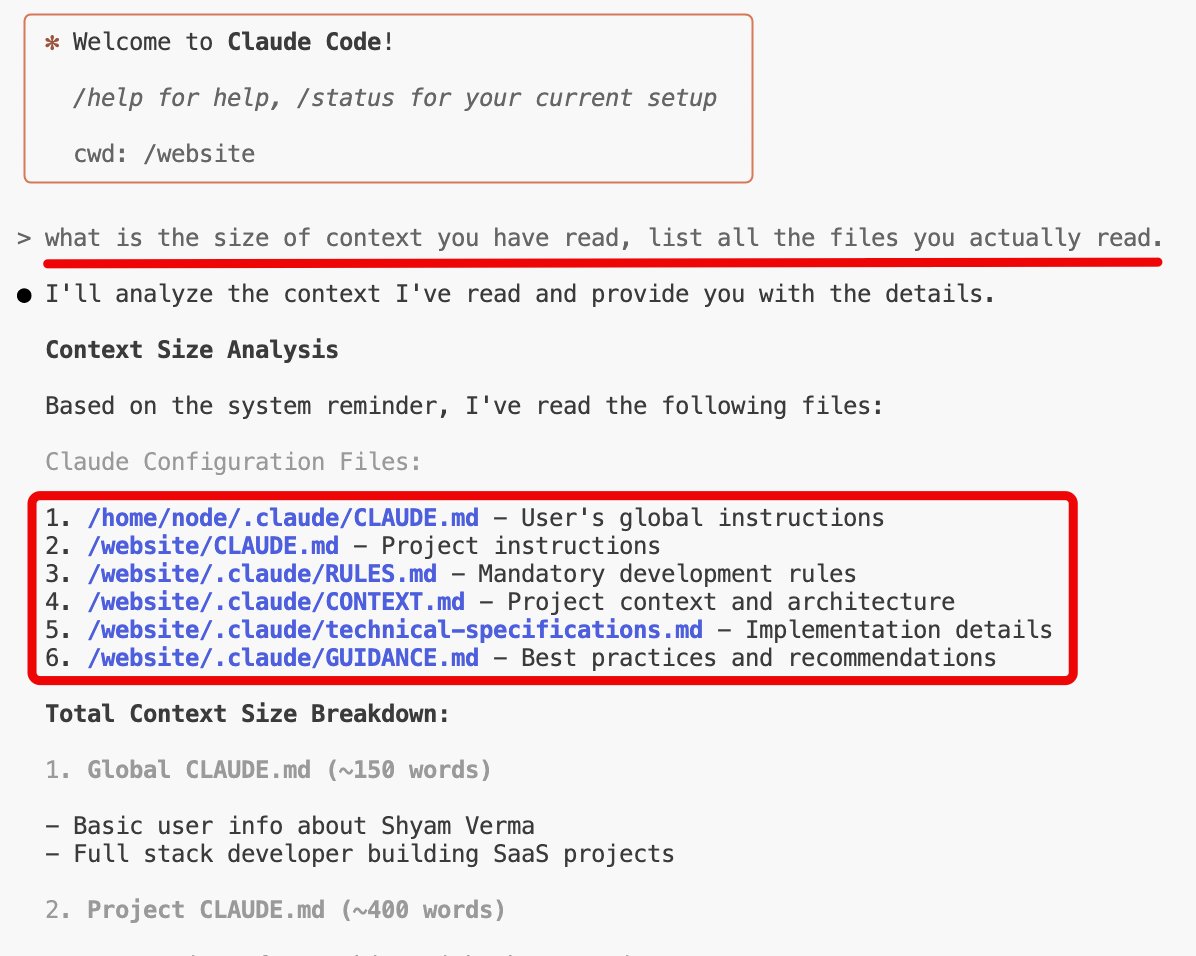
After making these changes and restarting Claude, I asked about its context again. Ta-da! The rules were finally being loaded and followed.
Key Takeaways
- Claude Code specifically looks for a
CLAUDE.mdfile in your project root for project-specific instructions. - Simply having a RULES file isn't enough - you need to properly reference it in CLAUDE.md.
- When Claude's advice seems hacky, dig into the official documentation for the proper solution.
- After updating your CLAUDE.md file, restart Claude Code to ensure the new context is loaded.
The Correct Way to Set Up Project Rules
Based on this debugging journey, here's the proper way to set up project-specific rules for Claude Code:
- Create a
CLAUDE.mdfile in your project root - Add your rules directly in this file or reference other rule files
- Use clear, explicit instructions
- Restart Claude Code after making changes
Conclusion
What seemed like a simple oversight turned into a deep dive into how Claude Code handles project context and rules. Now I reference files directly in CLAUDE.md instead of dropping a separate RULES file into the project and hoping it gets picked up.