
How to Paste Images in Claude Code
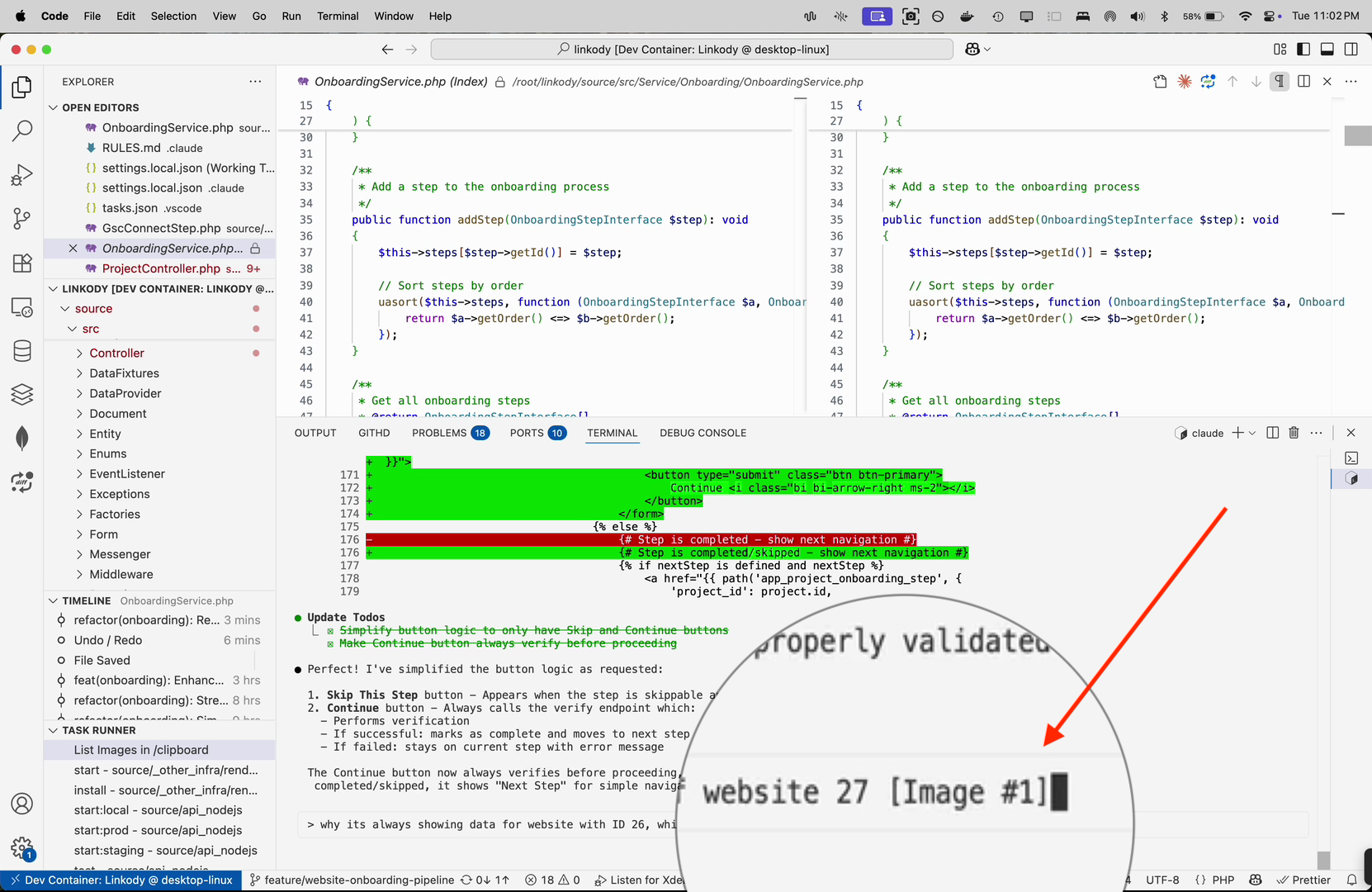
Ever tried pasting a screenshot into Claude Code while running in a devcontainer? It doesn't work. The containerized environment can't access your clipboard. I tried many clipboard tools and scripts on both host and guest machines, even SSH wrappers, but the clipboard never worked. The fix skips the clipboard entirely: paste the image's file path as text instead.
Pasting a File Path Works
When you paste a full file path to an image in Claude Code, it automatically recognizes and attaches the image!
Step 1: Mount Your Screenshots Folder
In .devcontainer/devcontainer.json, add a mount for your screenshots:
{
  "mounts": [
    "source=/Users/shyam/Downloads/tmp,target=/clipboard,type=bind,readonly"
  ]
}
Step 2: Create a Quick List Task
In .vscode/tasks.json, add a task to list recent images:
{
  "tasks": [{
    "label": "List Images in /clipboard",
    "type": "shell",
    "command": "find /clipboard -type f \\( -iname \"*.jpg\" -o -iname \"*.png\" -o -iname \"*.gif\" -o -iname \"*.jpeg\" \\) -printf '%T@ %p\\n' | sort -nr | head -n 10 | cut -d' ' -f2-"
  }]
}
Step 3: One-Click with Task Runner
Install the Task Runner extension for instant access:
"extensions": ["SanaAjani.taskrunnercode"]
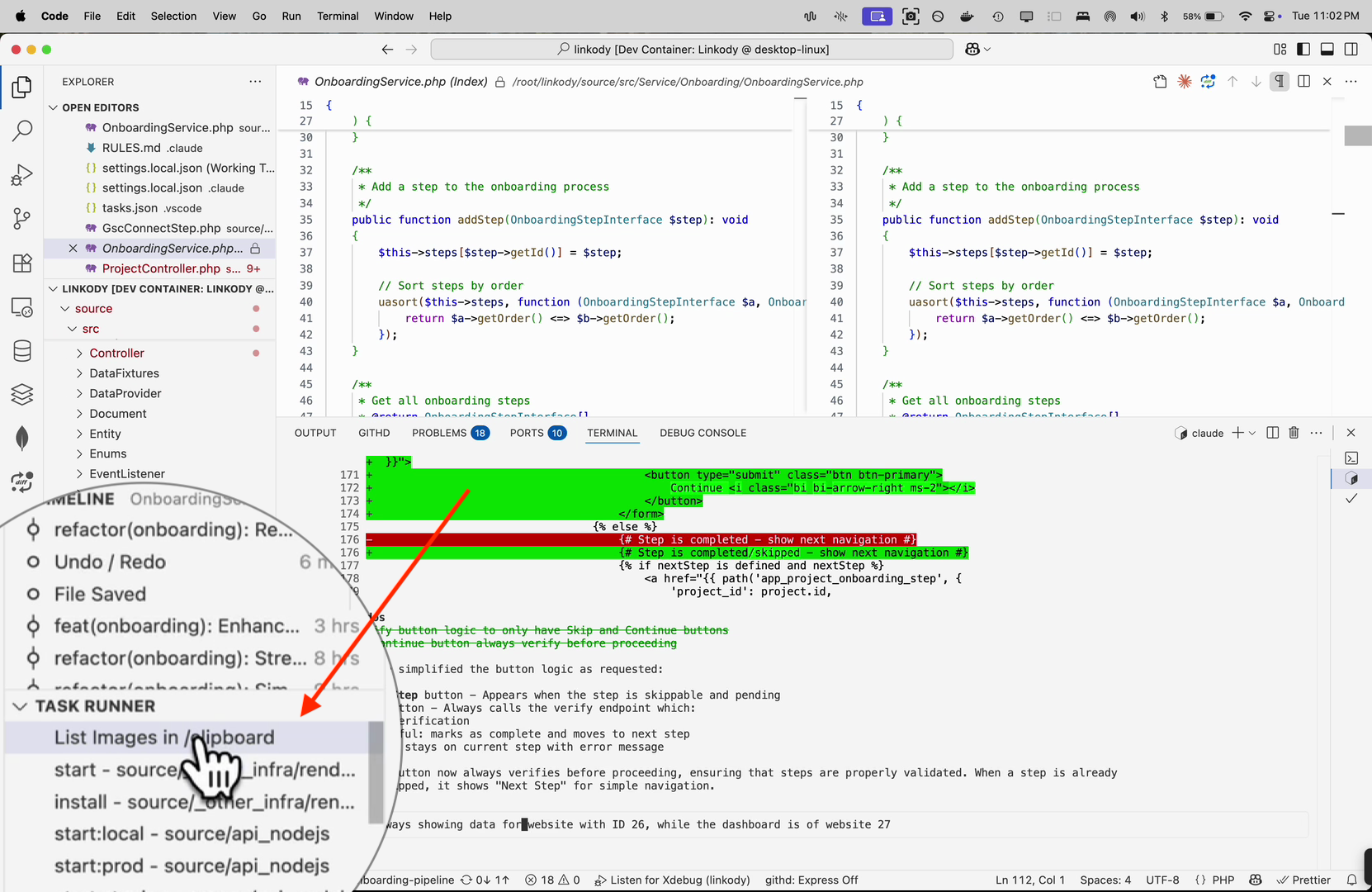
The Workflow
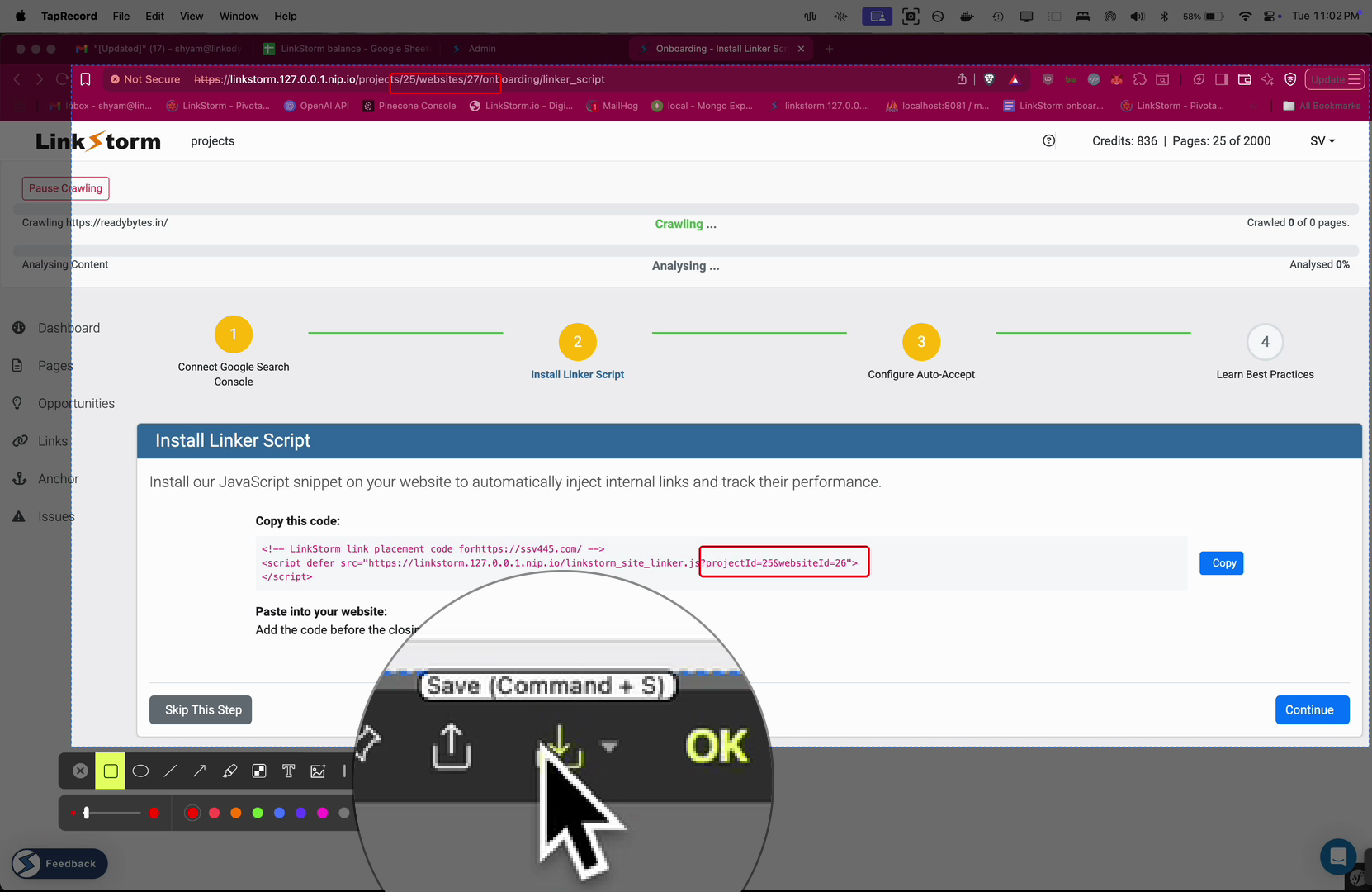
1. Take and Save Screenshot
2. Click Task Runner
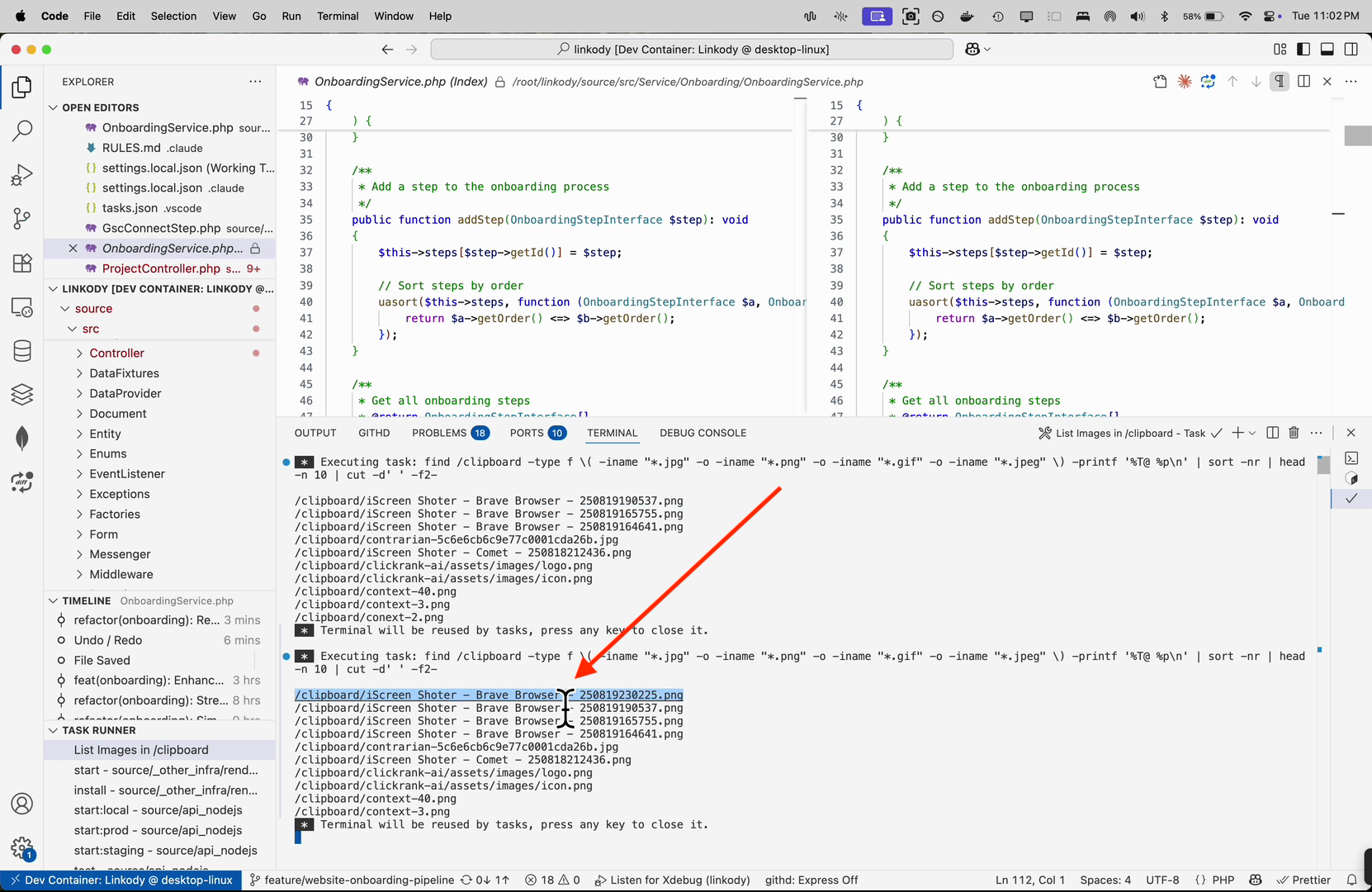
3. Copy the Latest Image Path
4. Paste Path - Claude Handles It!
Example in Action
# Task output shows:
/clipboard/error_2025-01-19.png
/clipboard/ui_mockup.png

# Just paste in Claude Code:
"Check this error: /clipboard/error_2025-01-19.png"
# → Image automatically appears as attachment!
Why This Works
- Docker mount makes host files visible in container
- Task lists paths sorted by newest first
- Claude Code's built-in feature recognizes image paths and auto-attaches them
- No manual file transfers or complex workarounds needed
Pro Tips
- Use a specific folder for screenshots, not your main Downloads
- Configure your screenshot tool to save there automatically
- The mount is read-only, so you can't accidentally modify anything from inside the container
- Periodically clear out old screenshots to keep the list manageable
Conclusion
The key was discovering that Claude Code automatically attaches images when you provide their full path. Combined with a Docker mount and a one-click task, you can copy a screenshot's path and paste it straight into Claude Code, no clipboard access required.